Carlson Viking SIM card setup
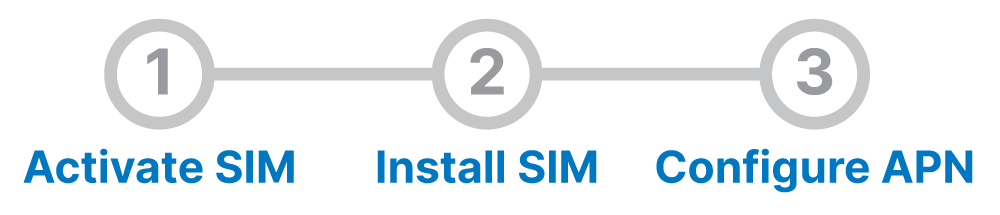
Activate SIM or eSIM
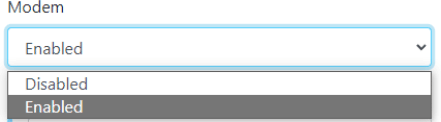
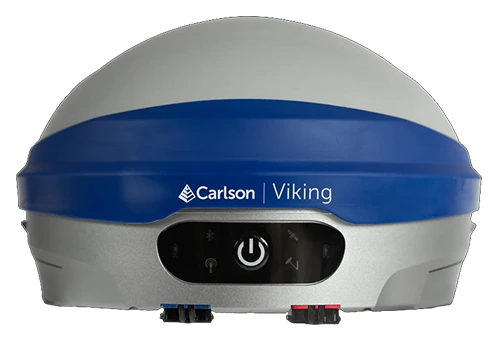
Activating the eSIM may not be available unless you have the latest firmware which may not be released yet. The Viking should have an eSIM already installed, so you may not need a SIM card. Connect to the WIFI of the Viking using the WIFI password inside the battery cover. Open an internet browser and type in the address 192.168.10.1 and use password carlsonsw unless you’ve chosen your own. Choose Networking, enable the modem choose the eSIM slot, and make sure that the modem is enabled. You can follow that link to activate the eSIM.
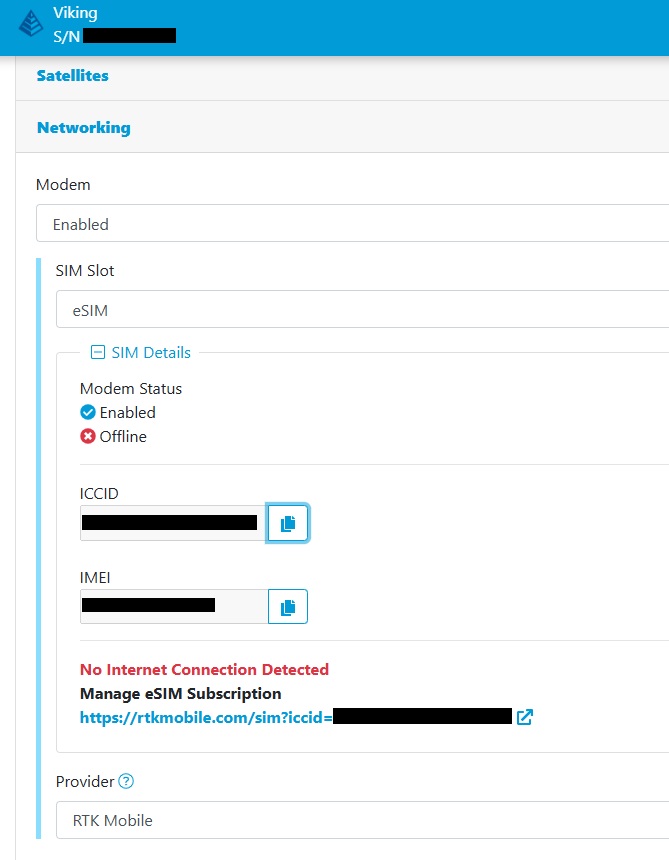
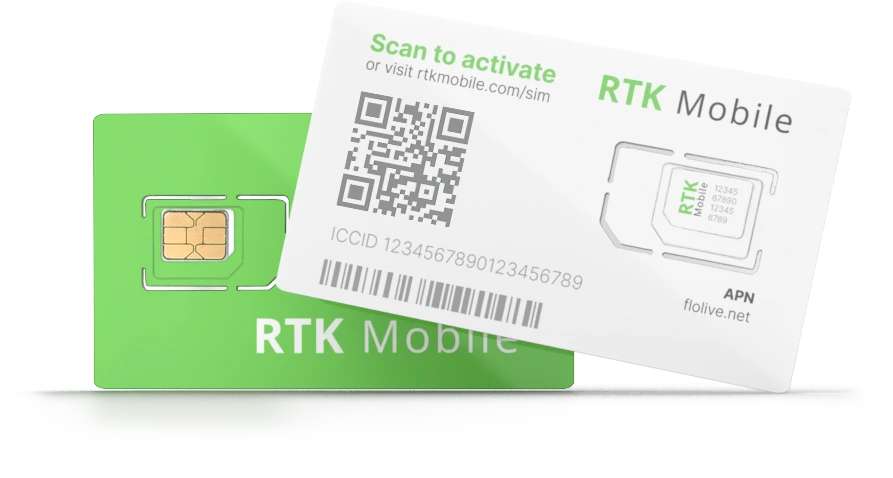
To activate a SIM card, use your phone camera to scan the QR code on your SIM card or click here to enter your ICCID and make sure your SIM card has been activated. The ICCID is printed on the SIM card holder QR label and on the SIM itself. If it is not activated, buy a data plan subscription and associate it with the SIM.
Install SIM
Safety Notice: Power Off Before Inserting or Removing SIM or SD Card. To avoid damage to the unit or the card, always ensure the device is completely powered off before inserting or removing the SIM card or SD card. Performing these actions while the device is powered on can result in data corruption, hardware damage, or malfunction.
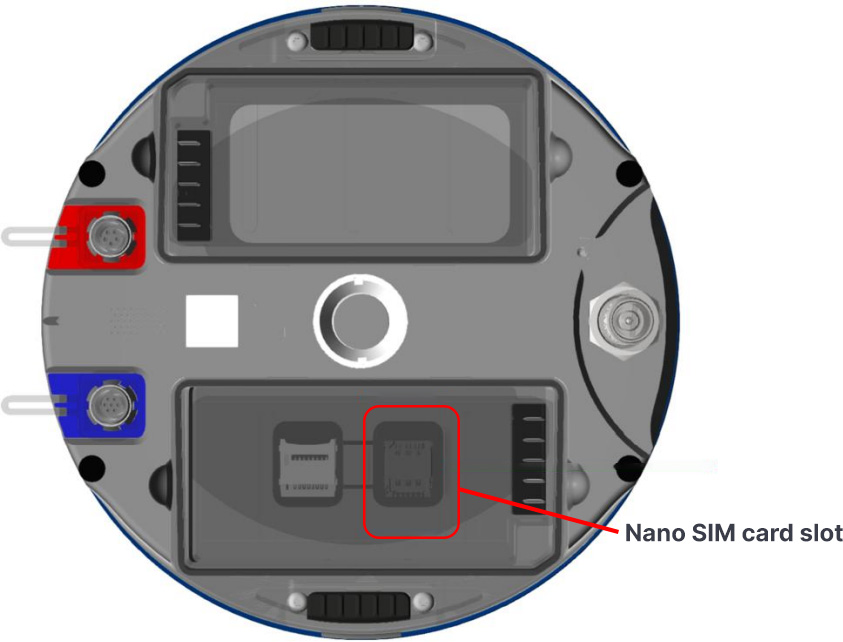
1. Power off the Viking!
2. Remove the Battery A door
3. Remove Battery A
4. Remove the SIM card rubber cover
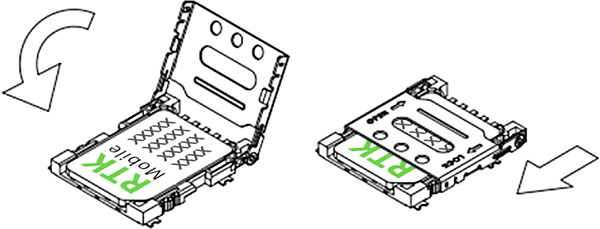
5. Slide the metal lid from ‘LOCK’ position to ‘OPEN’ position
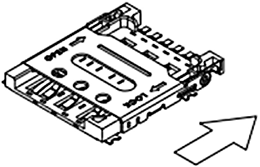
6. Gently flip the SIM holder lid open. The lid is delicate and can break if you attempt to open it while it is still locked.
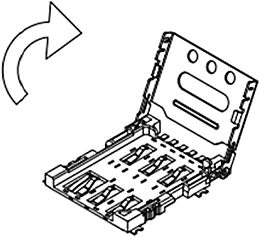
7. Use a nano-sized SIM card and insert the SIM
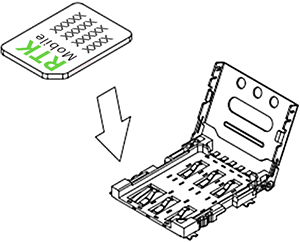
8. Close the metal lid and slide back to ‘LOCK’ position (makes clicking sound)
9. Reinstall the SIM card rubber cover
10. Re-insert the battery and insert the battery door
11. Power on the Viking
Configure APN
Choose one of the following methods to configure the Viking with the APN server name:
- Carlson Layout
- Carlson SurvCE/PC
- Or use the Web UI
Configure APN in Web UI
In the Web UI, the SIM card APN can be configured under Networking > Modem.
For your APN, enter flolive.net
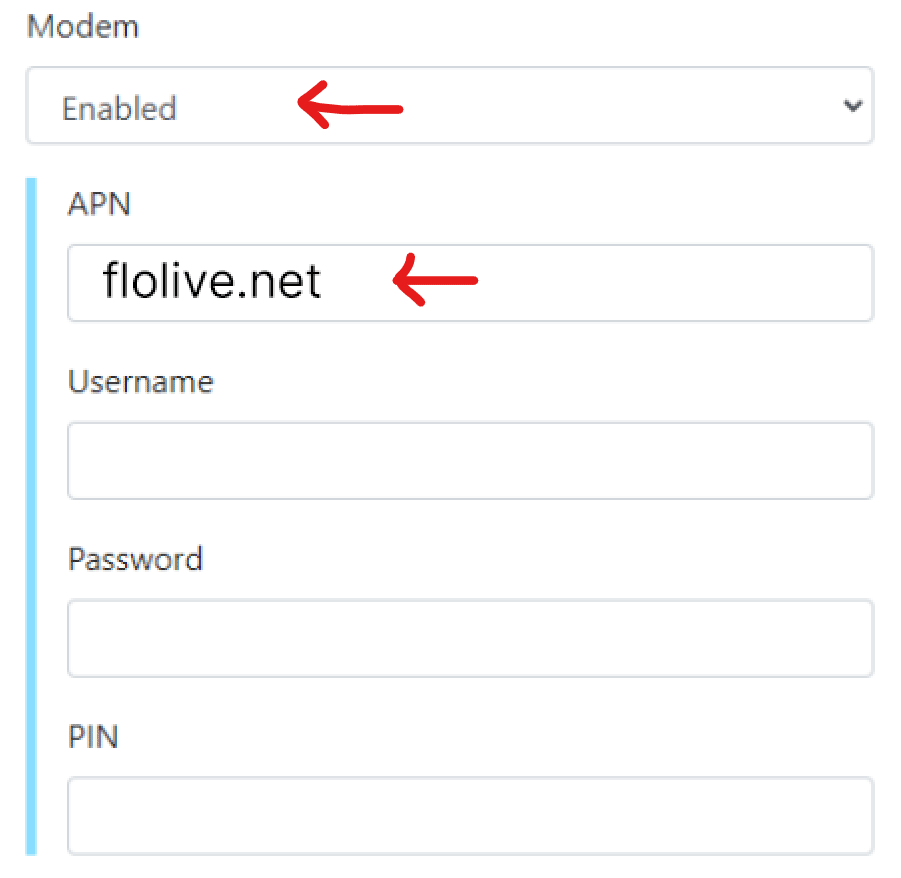
Username, password and pin: leave blank
Finally, set modem to Enabled