Understanding Your Data Usage with RTK Mobile SIM Cards
When utilizing your SIM card primarily for RTK corrections, exceeding 1 GB of data is unlikely. For limited internet usage on the data collector, plans of 2 GB or 5 GB are generally adequate.
You can monitor your data usage and plan limits at any time by visiting RTK Mobile Account. If you find your usage unexpectedly high, consider taking steps to reduce cell bandwidth usage on your tablet or upgrading to a 2 GB or 5 GB plan.
Specific Device Instructions
BRx7 Receiver
Using the RTK Mobile SIM card in the BRx7 typically won't exceed the 1 GB limit. The BRx7 has no password for it's onboard WIFI router. This needs a password to prevent others from using your cellular connection for internet and using your data. On your phone or computer, disconnect from your current WIFI and connect to the BRx7 WIFI. It should have a broadcast ID of your BRx7 Serial number, something similar to this:
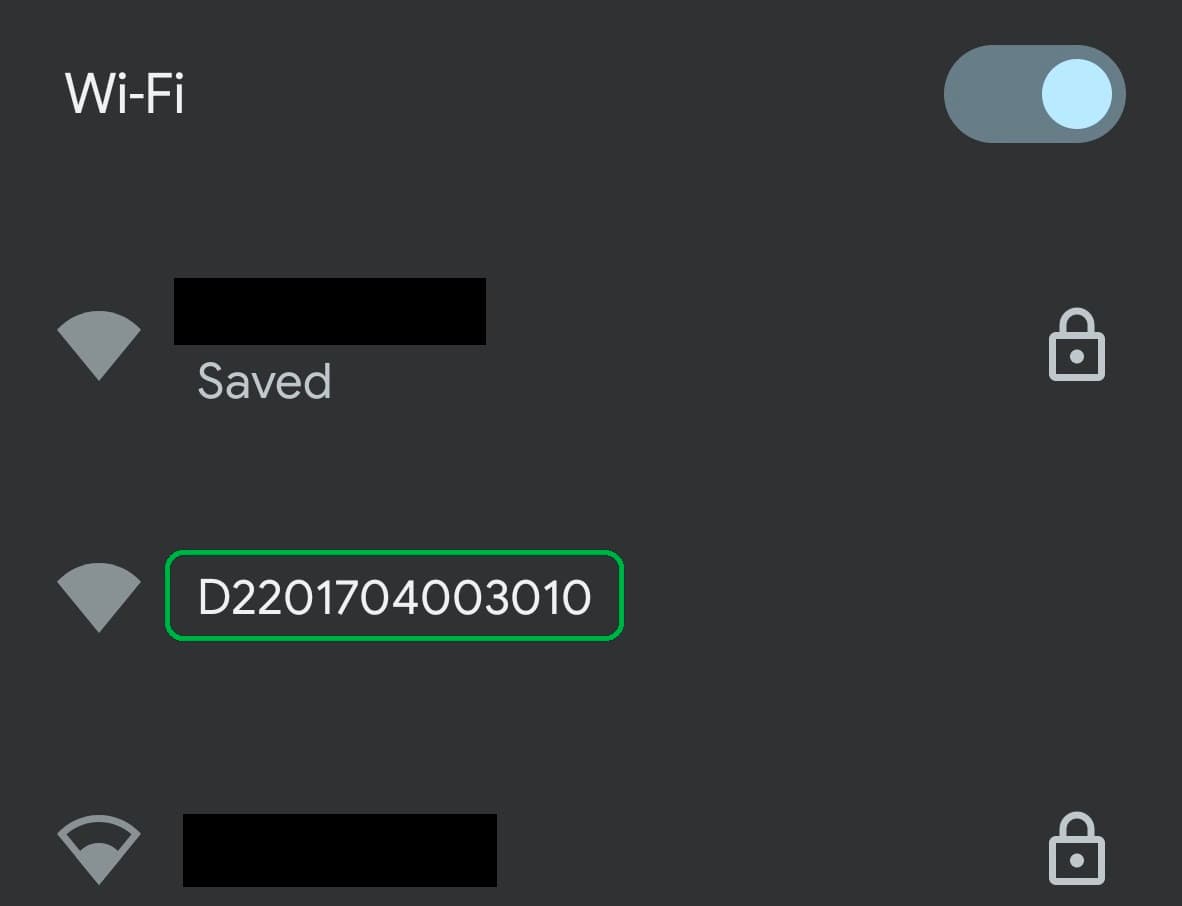
Connect to that and then go to a browser and type in 192.168.10.1 to go to the BRx7 WebUI.
It will ask for a user name and password. Default are:
Username: admin
Password: brx7
This should take you to the WebUI for the BRx7. It should look like this:
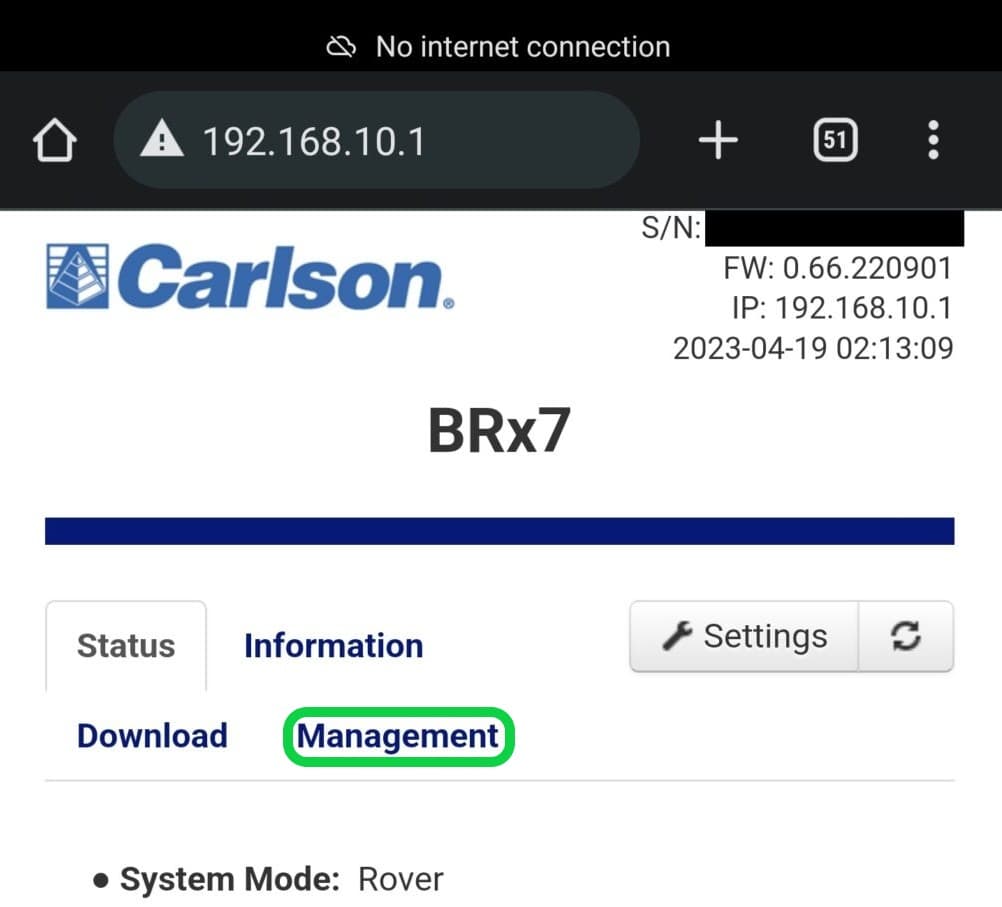
Click on the Management tab and check the box under WIFI Access Point.
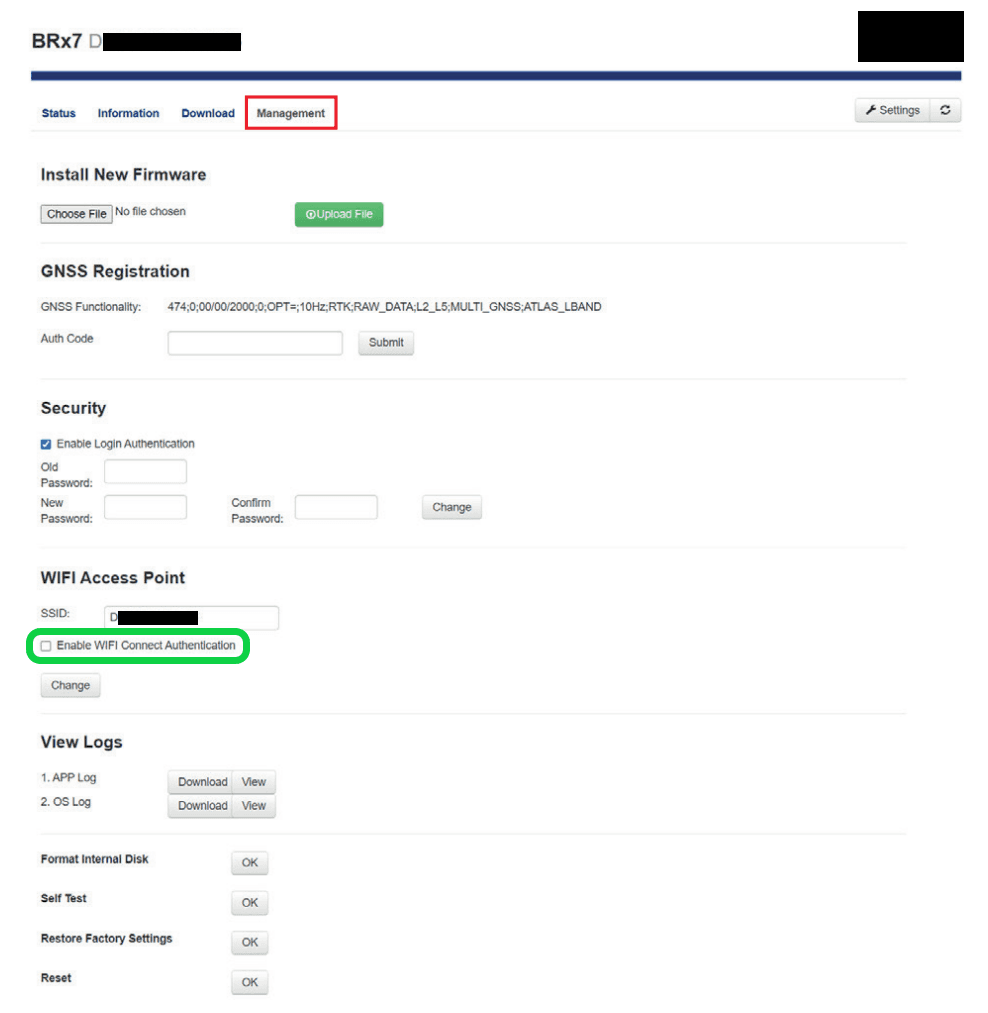
Then put in a password you will remember and click on the Change button.
Data Collector Tablet
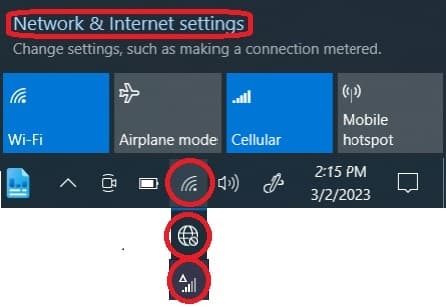
Excessive data usage is often due to backup utilities like Dropbox on Windows 10 tablets. These utilities can sync large files without restriction. If you use such services, opt for a larger data plan, such as 5 GB, and monitor your backup contents closely. To check what is using the data, touch the internet icon and then click on Network and Internet settings. Then click on Data usage under Cellular. It will show you where your data is being used from the past 30 days.
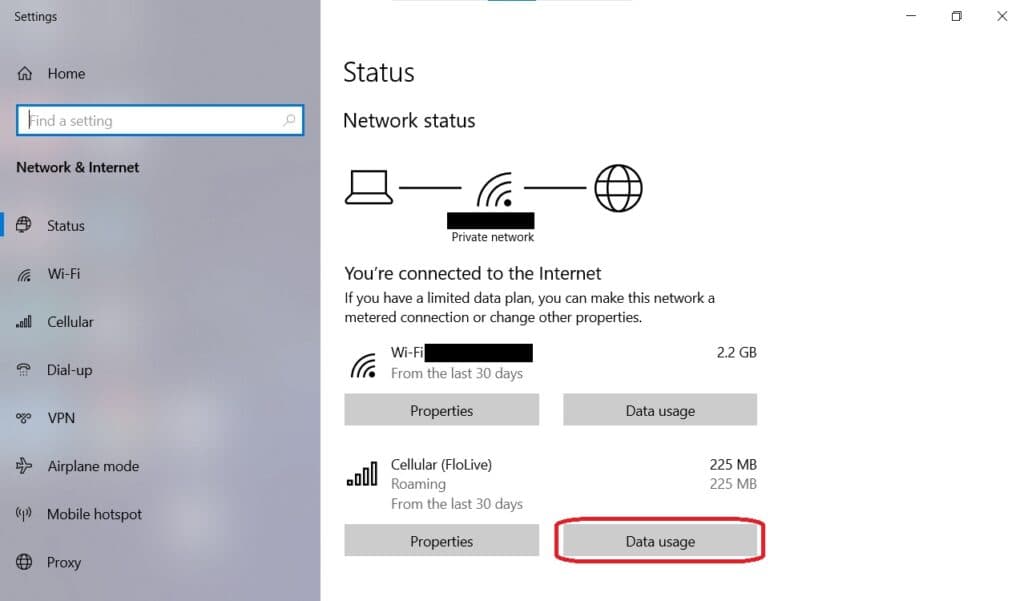
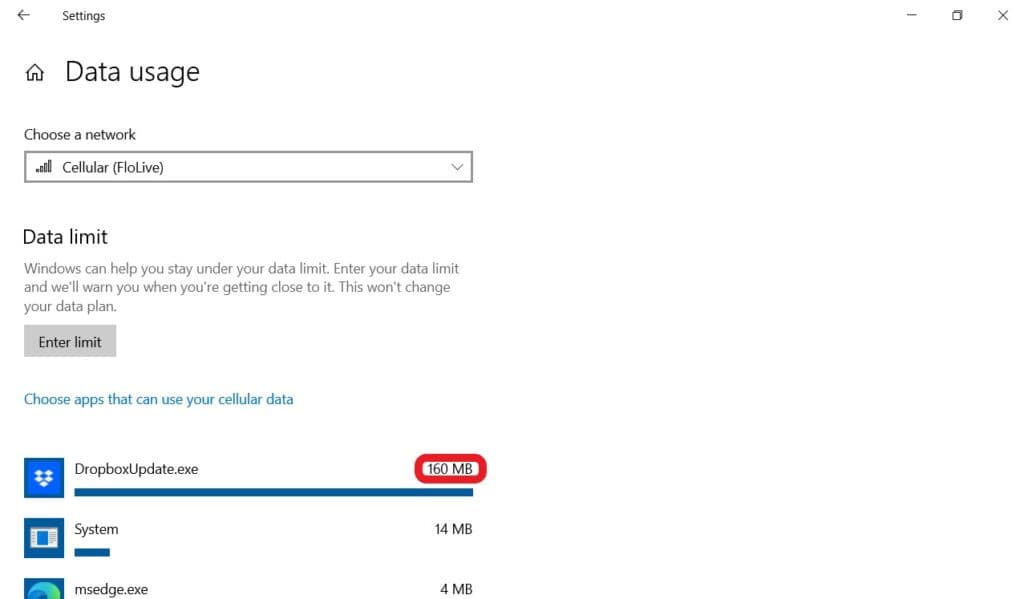
In some instances, your device might have an "internet leak" due to malware or a program continuously failing registration. To address this, you might consider creating a firewall rule. For instructions on blocking program registration with Microsoft, visit this guide.
Managing Cellular Data on Your Device
To control which apps use cellular data, follow these steps: Allow or Deny Cellular Data Usage.
For a comprehensive understanding of cellular settings in Windows, Microsoft provides a detailed guide: Cellular Settings in Windows.
Lastly, consider conducting a virus or malware scan if you suspect any malicious activity affecting your data usage. Malwarebytes offers a free scanning tool here. While antivirus software is helpful, remember that it can also consume data through updates, so weigh the pros and cons of keeping it installed.
By understanding your typical data usage, securing your devices, and taking proactive measures, you can effectively manage your data and avoid unexpected overages.