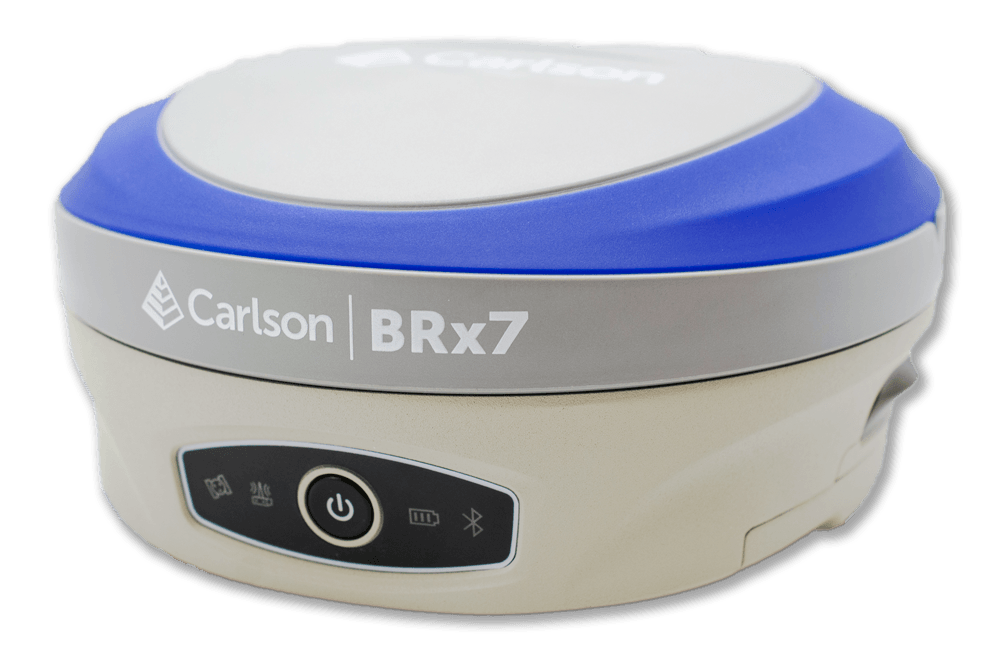
Carlson BRx7 SIM Setup
Activate SIM
Scan the QR code on your SIM card or check your ICCID on the activation page.
Install SIM
Install the SIM behind the battery cover — the SIM door has a lock.
Configure APN
Set the APN to
flolive.netwith Carlson SurvCE/PC or Carlson Layout.
Activate SIM
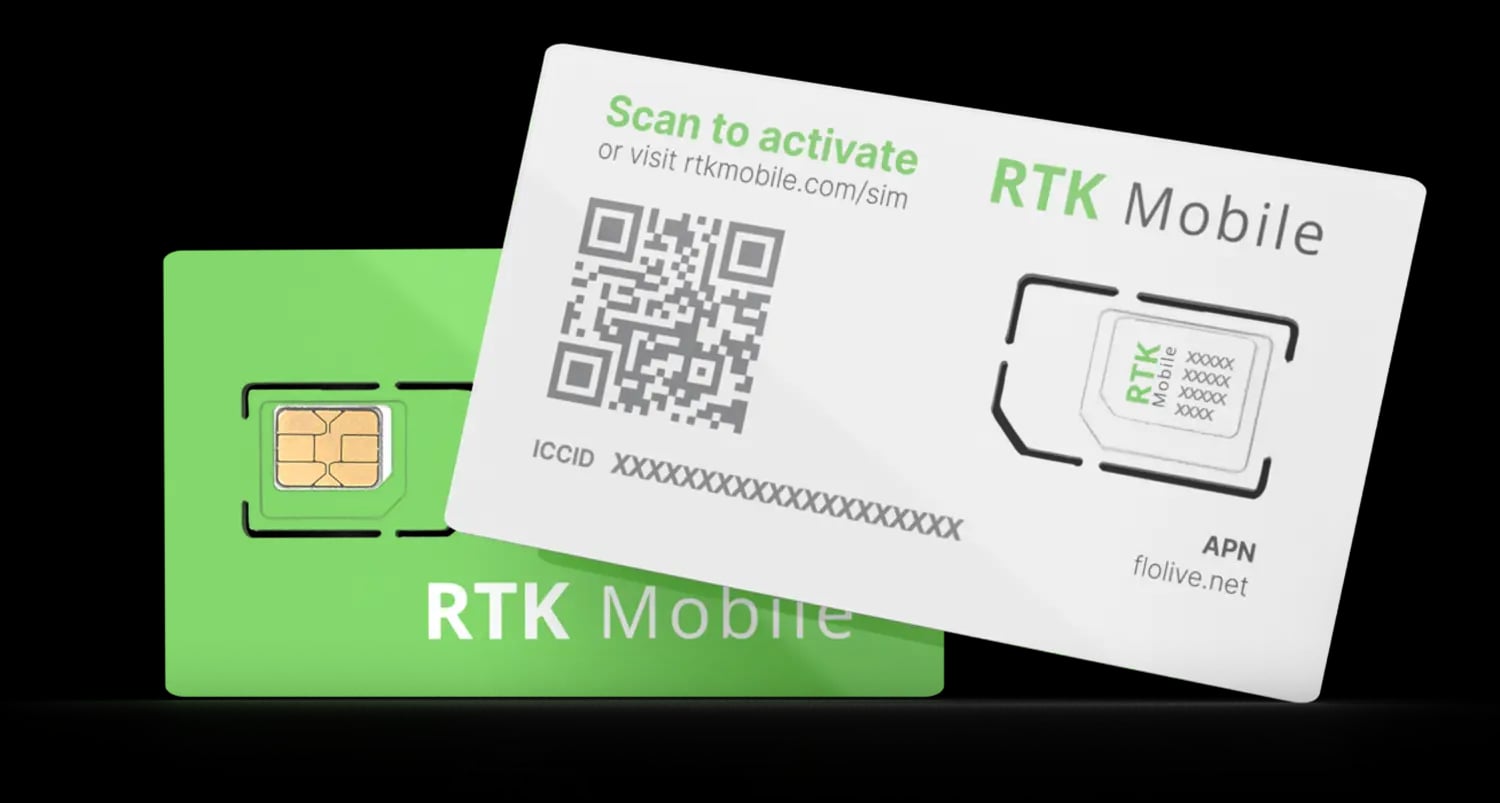
Use your phone camera to scan the QR code on your SIM card or click here to enter your ICCID and make sure your SIM card has been activated. The ICCID is printed on the SIM card holder QR label and on the SIM itself. If it is not activated, buy a data plan subscription and associate it with the SIM.
Install SIM
Open the battery cover, SIM card bay cover and SIM socket locking door as shown below to install the SIM card. The tricky part is that the SIM card door has a lock.
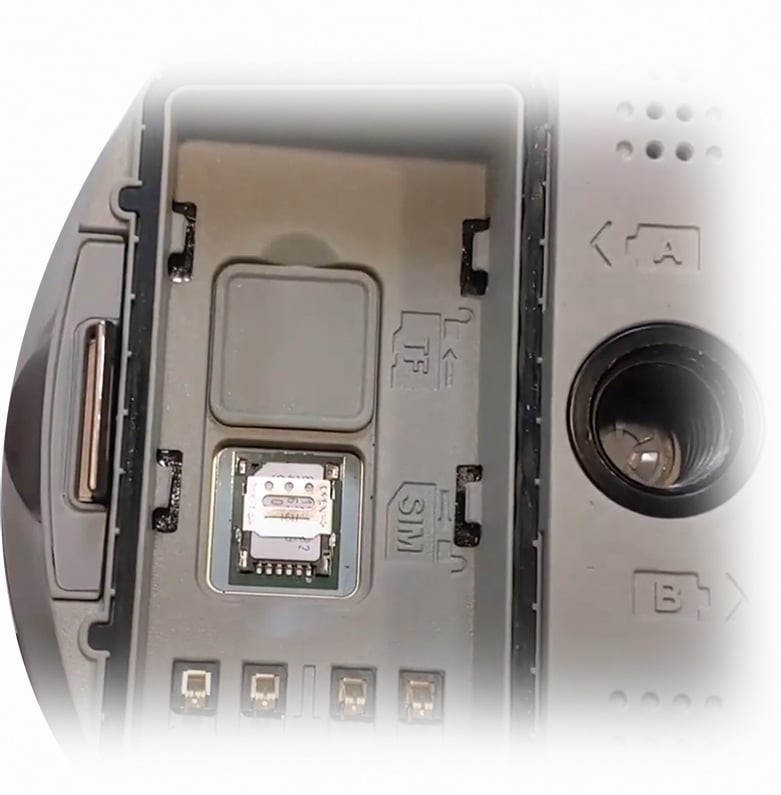
As shown in the video, slide the door up about 2 mm to unlock it and swing the door up. Place the SIM card with the cut corner in the away from the hinge. Close and slide the door down 2 mm to lock it in place.
Configure APN
The BRx7 needs the APN server name before the SIM can get online. Whichever software you use, the settings are the same:
- APN:
flolive.net - Username, password and PIN: leave blank
Choose the method you use to configure your BRx7 below. Both work; you only need to complete one.
Password Protect the BRx7 WIFI
(Optional, but highly suggested)
The BRx7 has no password for it's onboard WIFI router. This needs a password to prevent others from using your cellular connection for internet and using your data. This is to be done after you have put in your APN, because a factory defaults reset will reset the network to open again. On your phone or computer, disconnect from your current WIFI and connect to the BRx7 WIFI. It should have a broadcast ID of your BRx7 Serial number, something similar to this:
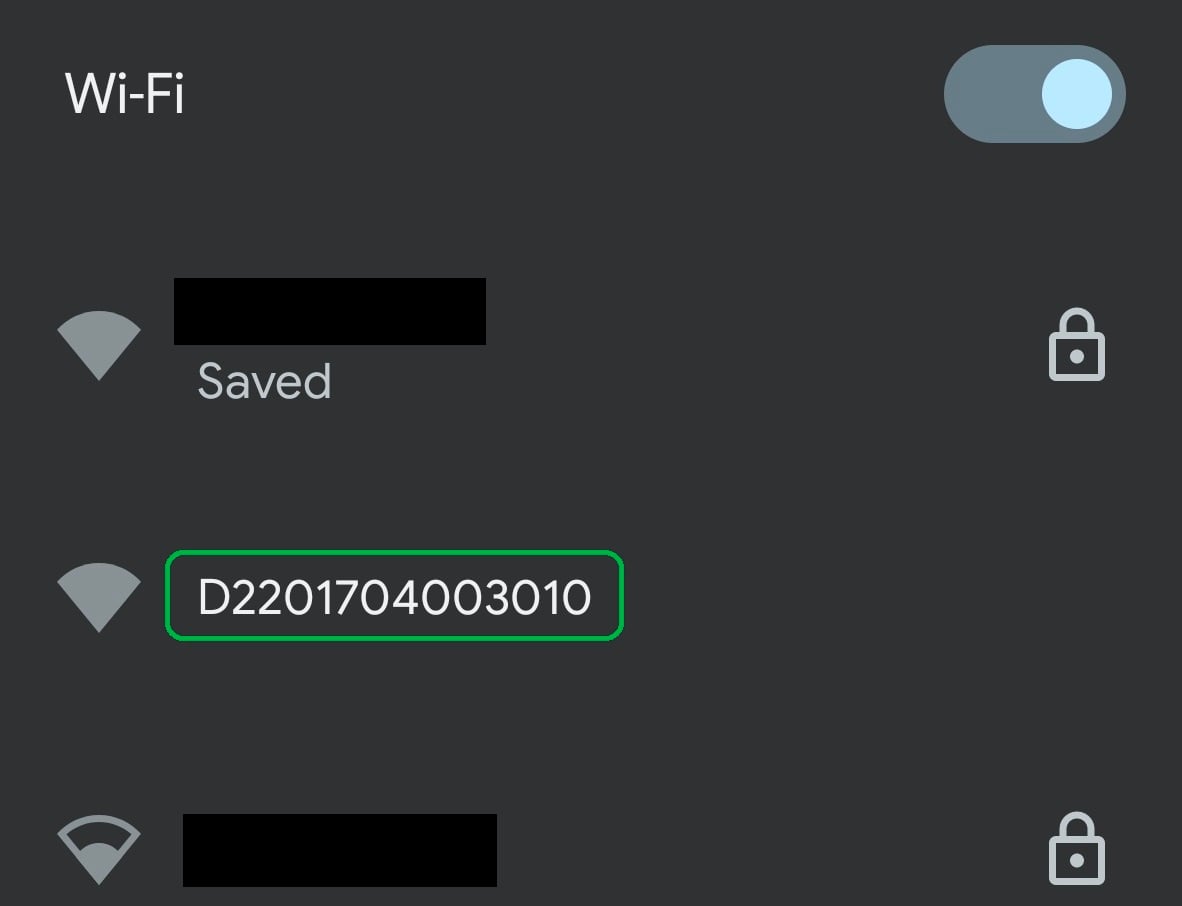
Connect to that and then go to a browser and type in 192.168.10.1 to go to the BRx7 WebUI.
It will ask for a user name and password. Default are:
Username: admin
Password: brx7
This should take you to the WebUI for the BRx7. It should look like this:
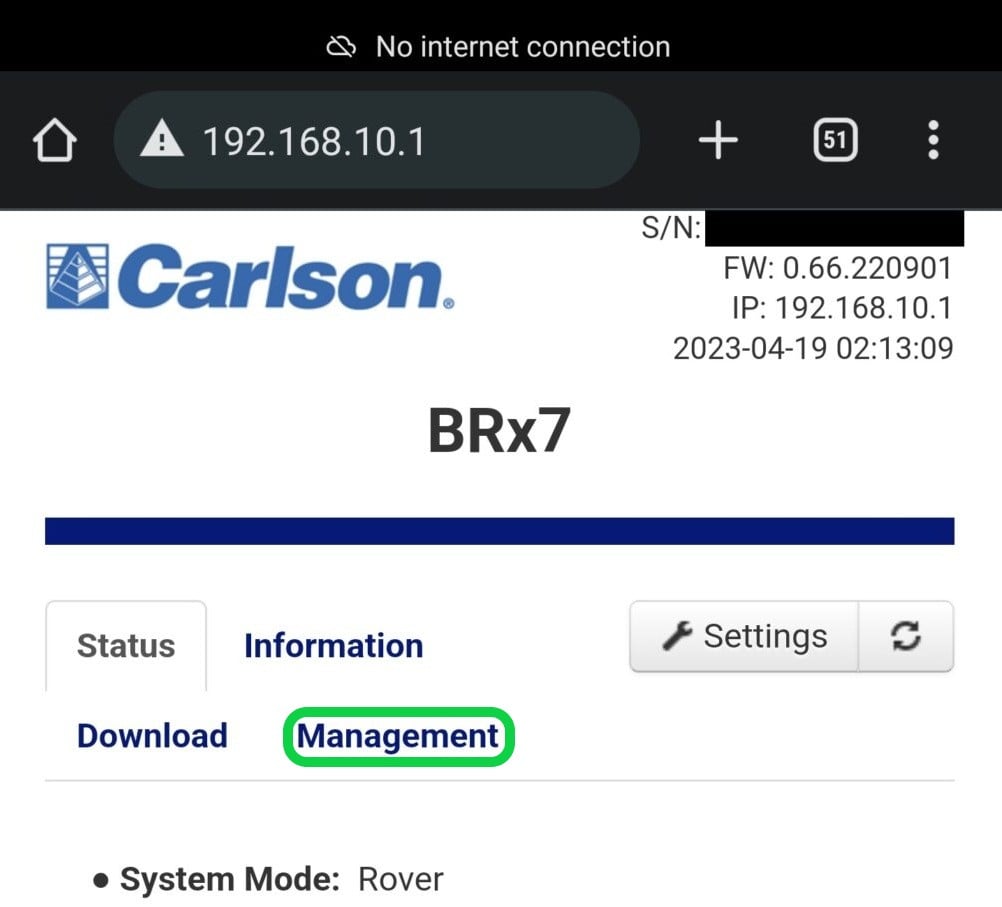
Click on the Management tab and check the box under WIFI Access Point.
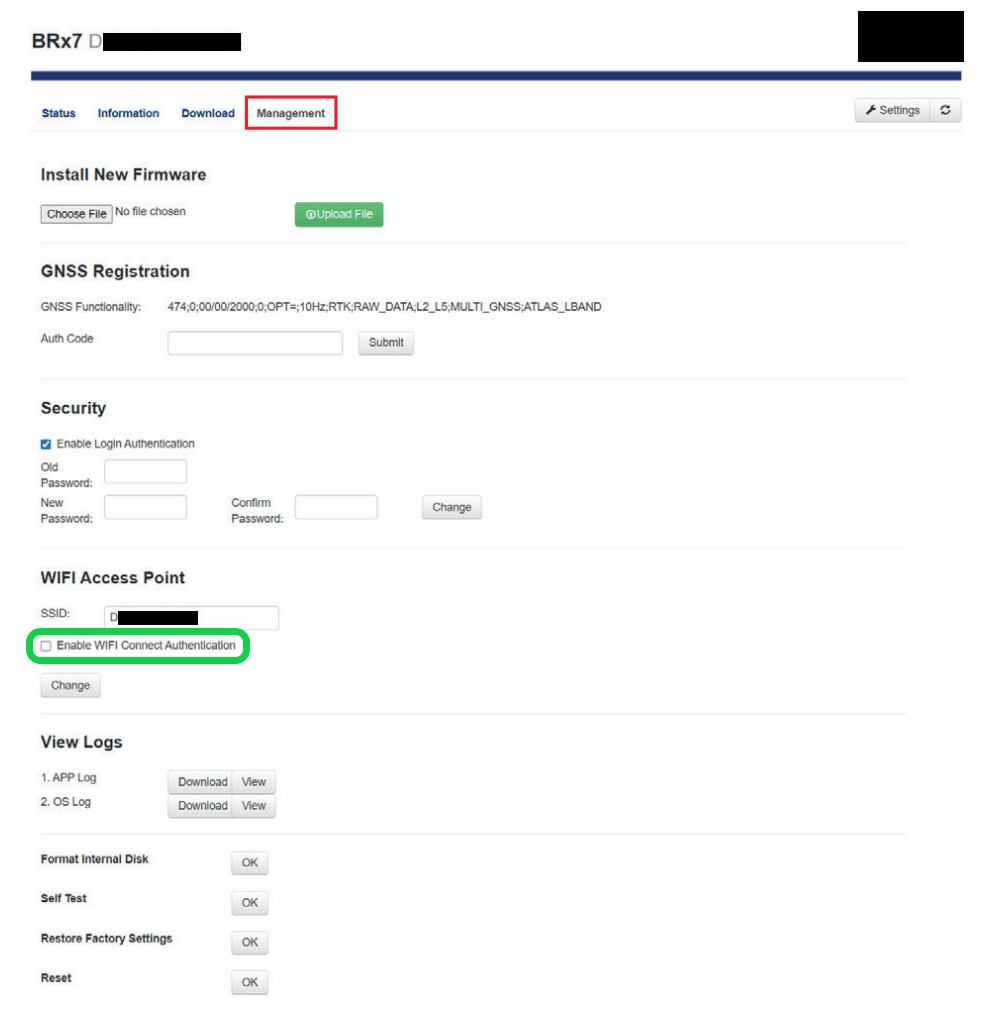
Then put in a password you will remember and click on the Change button.