Carlson Viking SIM card setup

Activate SIM
Scan the QR code on your SIM card or check your ICCID on the activation page.
Install SIM
Power off the Viking and install the nano SIM in the slot under Battery A.
Configure APN
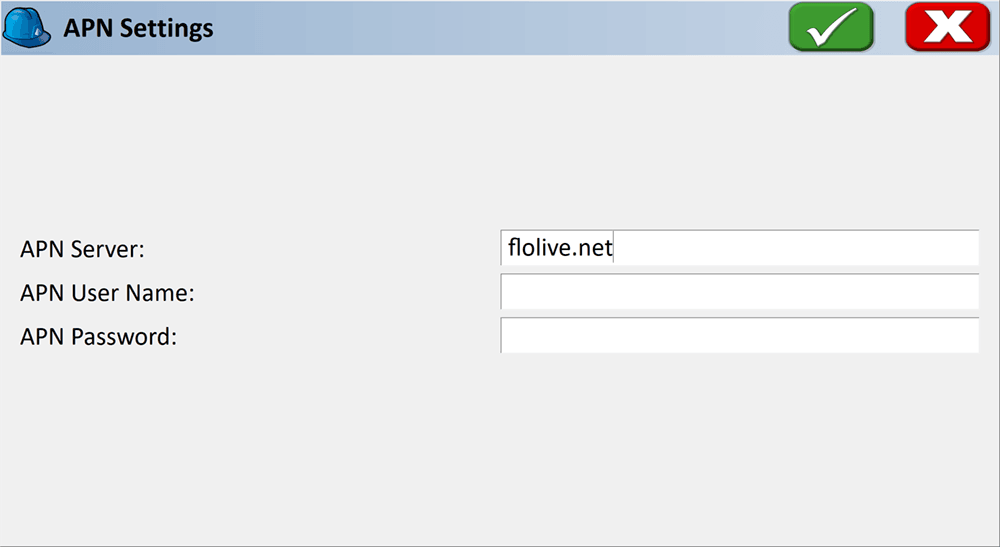
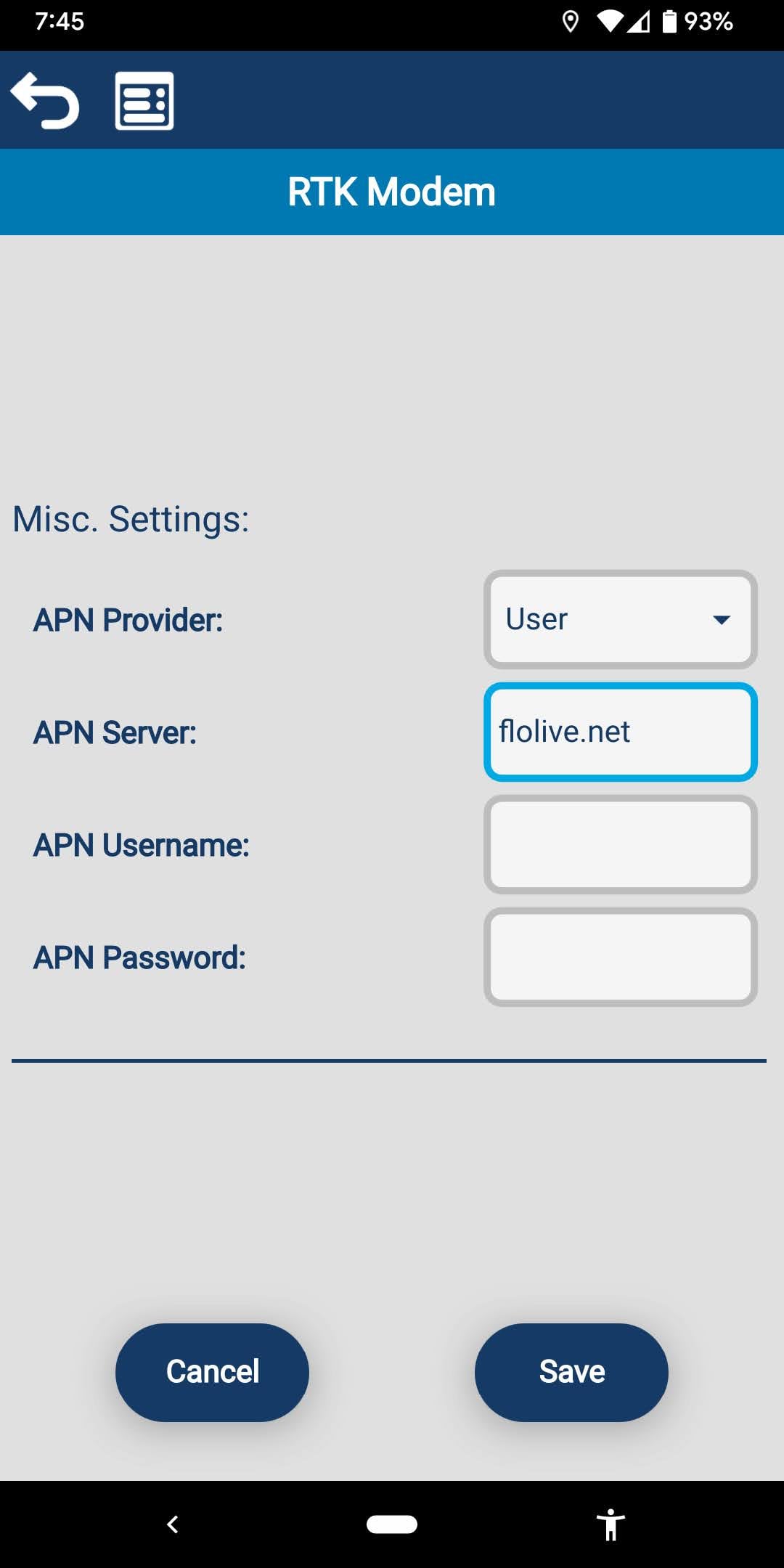
Set the APN to
flolive.netwith Carlson SurvCE/PC, Carlson Layout, or the Web UI.
Activate SIM
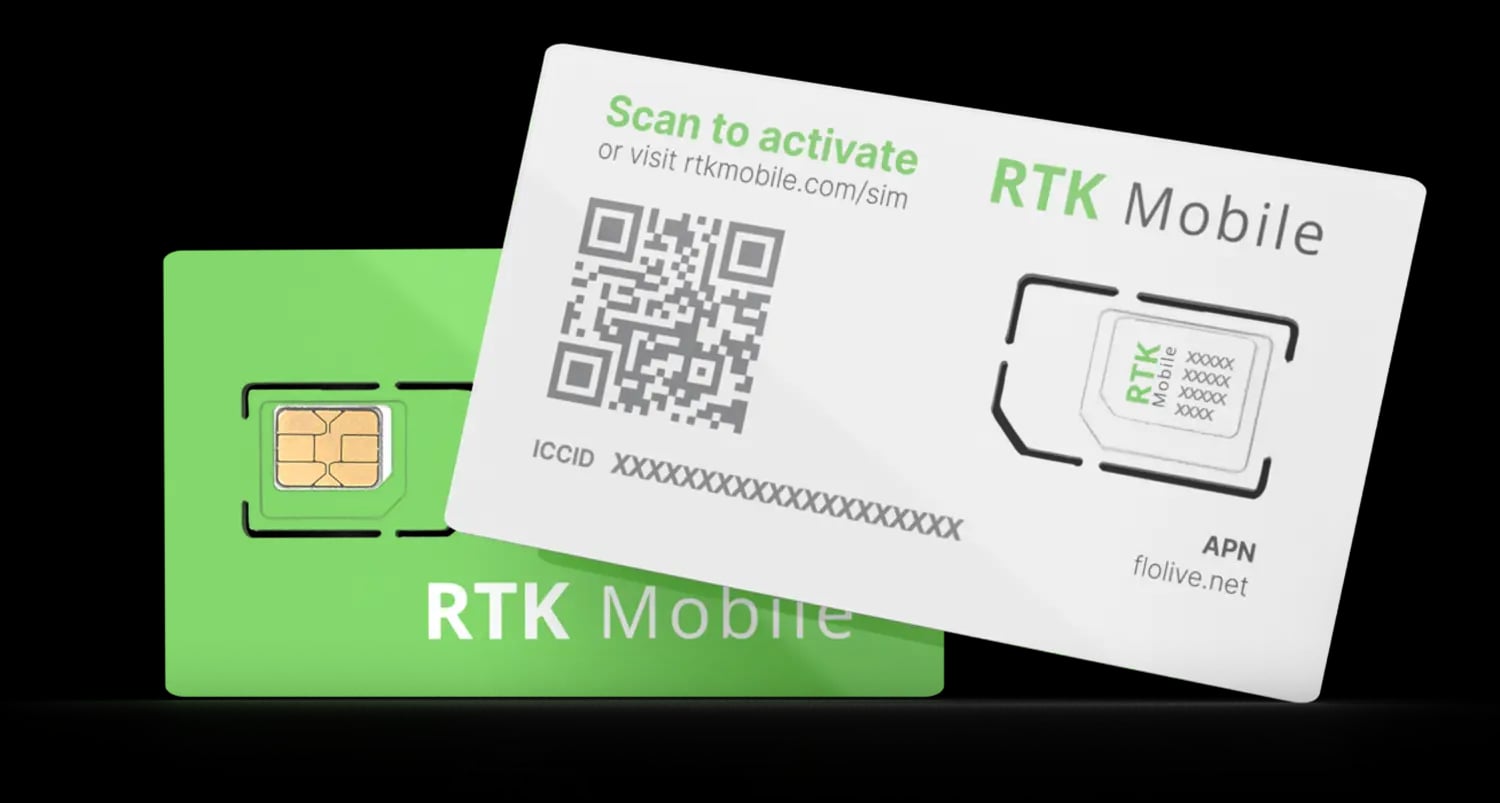
Use your phone camera to scan the QR code on your SIM card or click here to enter your ICCID and make sure your SIM card has been activated. The ICCID is printed on the SIM card holder QR label and on the SIM itself. If it is not activated, buy a data plan subscription and associate it with the SIM.
Install SIM
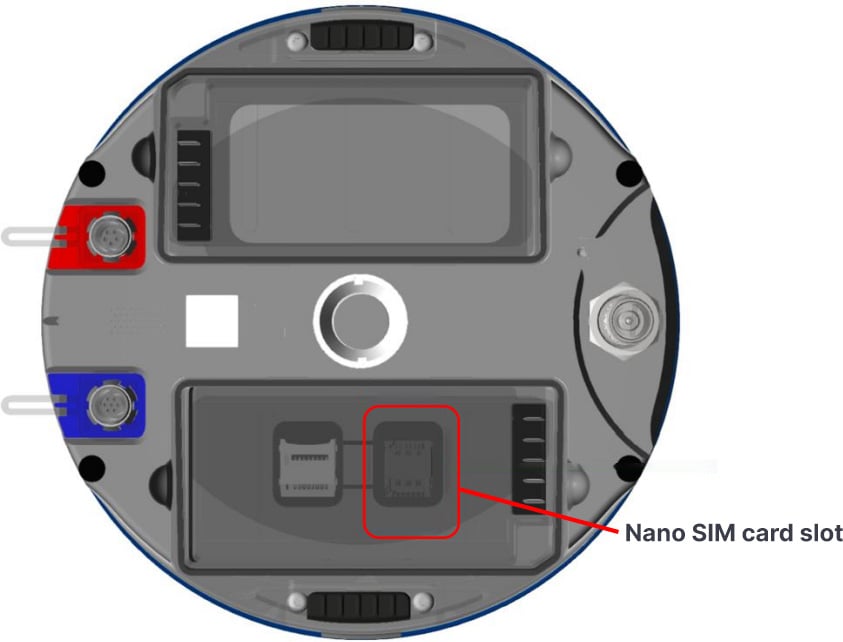
Power off the Viking!
Remove the Battery A door
Remove Battery A
Remove the SIM card rubber cover
Slide the metal lid from 'LOCK' position to 'OPEN' position
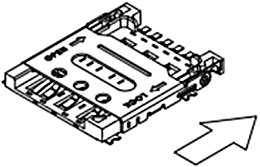
Gently flip the SIM holder lid open. The lid is delicate and can break if you attempt to open it while it is still locked.
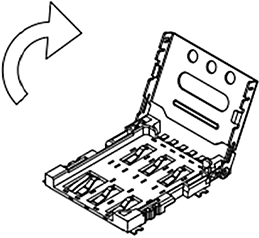
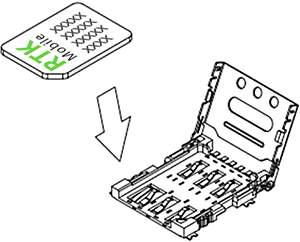
Use a nano-sized SIM card and insert the SIM
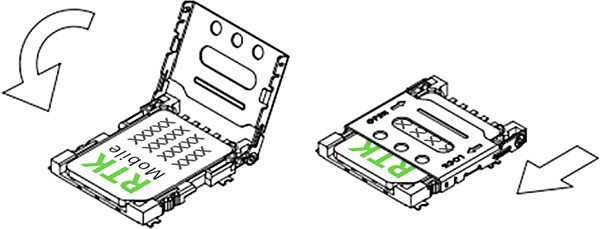
Close the metal lid and slide back to 'LOCK' position (makes clicking sound)
Reinstall the SIM card rubber cover
Re-insert the battery and insert the battery door
Power on the Viking
Configure APN
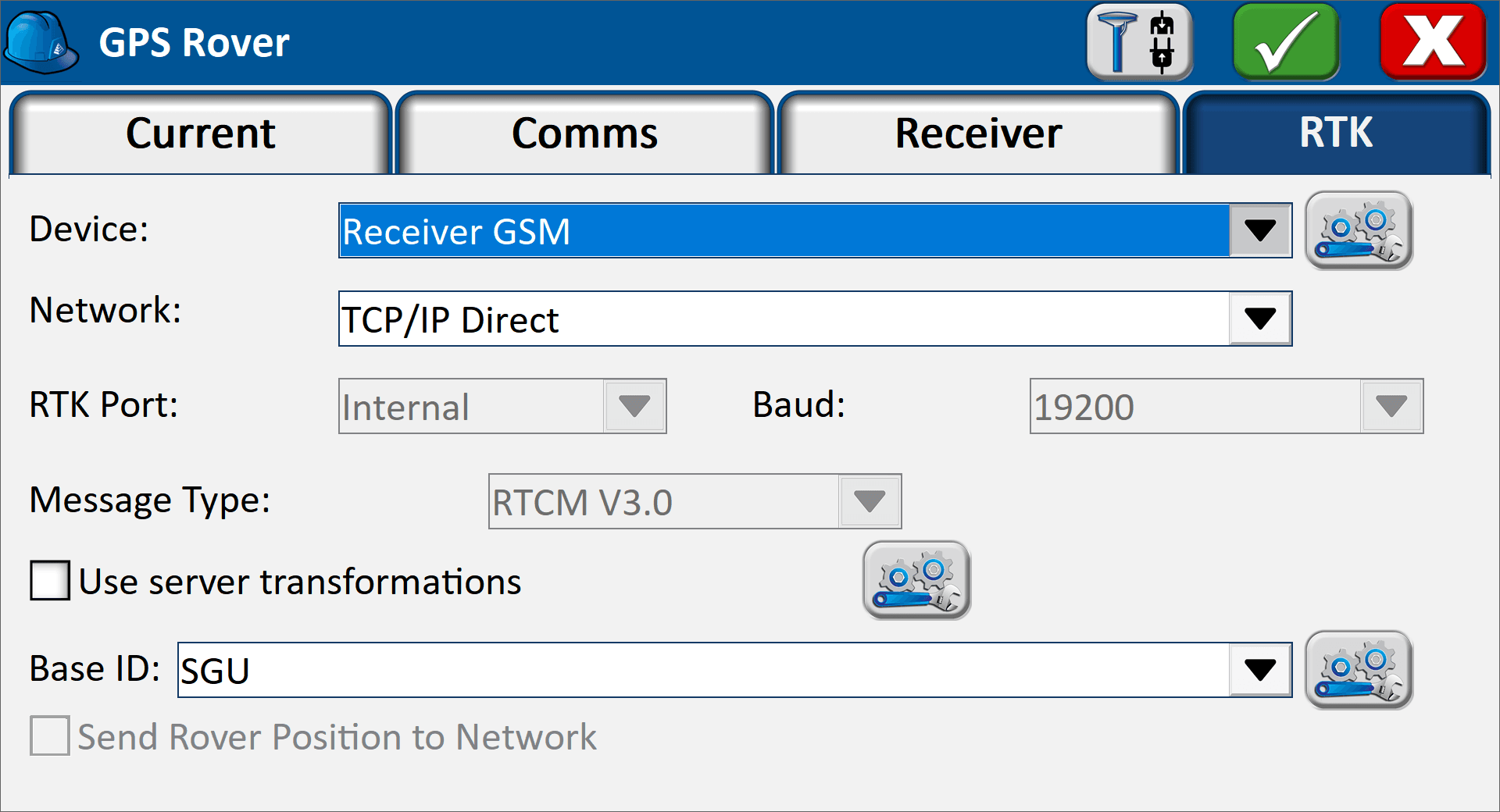
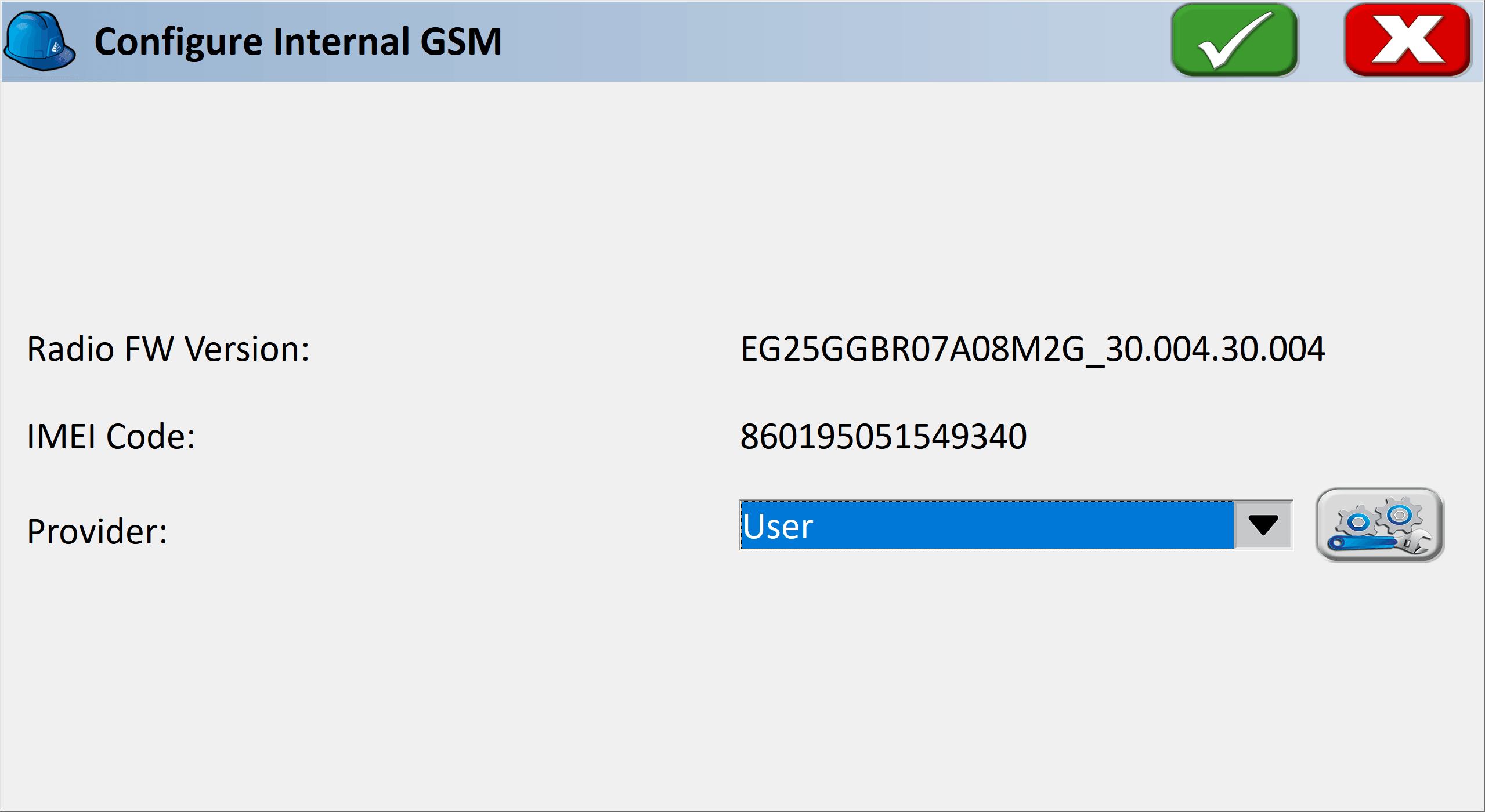
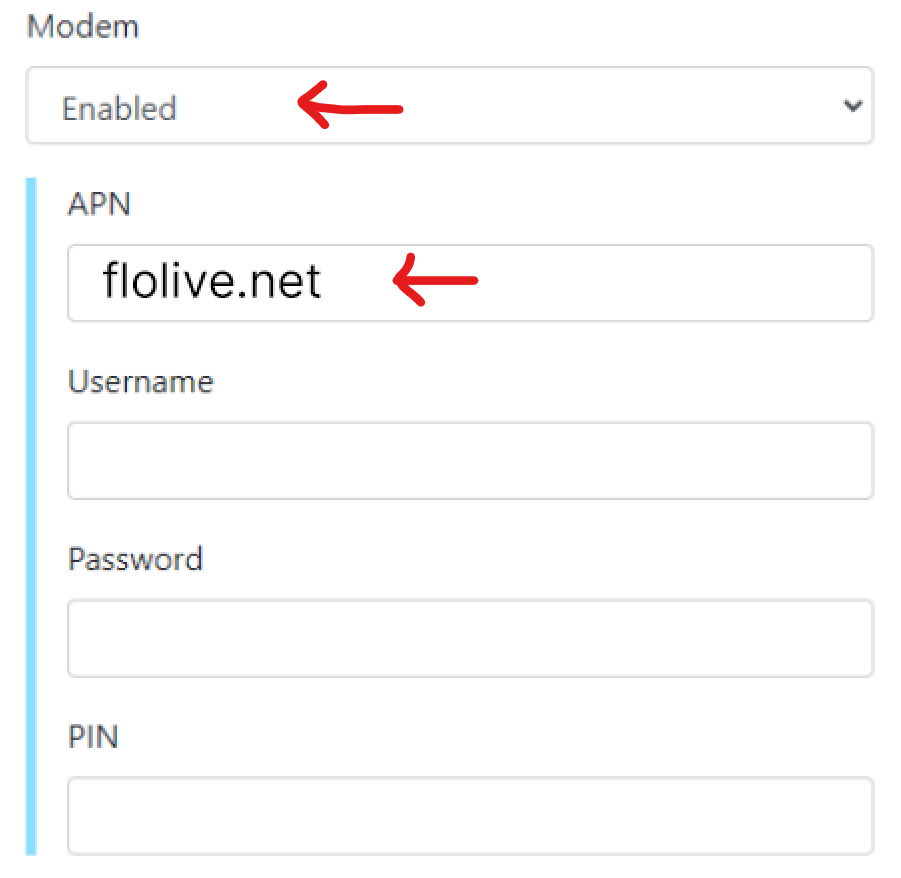
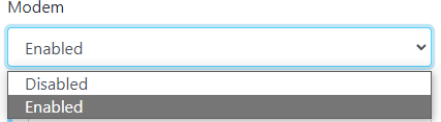
The Viking needs the APN server name before the SIM can get online. Whichever software you use, the settings are the same:
- APN:
flolive.net - Username, password and PIN: leave blank
Choose the method you use to configure the APN your Viking below. All three work; you only need to complete one.