RT5 instructions apply to both the RT5 and RTk5.
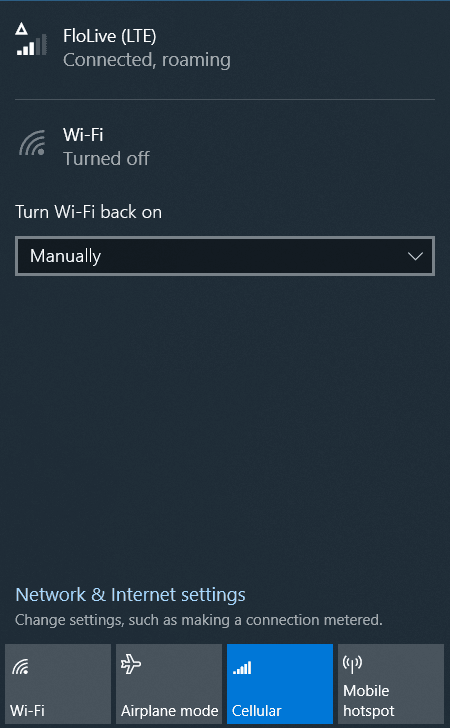
When you have the "Connected, roaming" message as shown above, you know the SIM card is configured correctly and is connected to the internet. Follow these steps in the order shown if you followed the instructions here and are still having trouble.
1. Verify SIM is Activated
Login to your RTK Mobile account to see your Data plans and the ICCID number associated with each plan. The ICCID number is printed both on the credit card sized SIM carrier that your SIM was punched out of and on the SIM you put in the RT5. If you don't know how to log into your account, you can verify the SIM status on the Activation page just by typing in the ICCID number. If it does not have a status of "Active" or "activated" you will need to associate a data plan with the SIM card.
2. Verify SIM is detected by RT5
Even though the SIM card is in the RT5, it could be seated incorrectly and not making contact.
If you are replacing a SIM card with a new one, it is best to start the RT5 without a SIM card inside before turning it off and putting the new one in.
3. Run RTK Mobile Setup to set the APN
Power the RT5 off with the SIM out, turn it on and power it back off to put in the SIM. Then run RTK Mobile Setup, which finds the modem and sets the APN for you:
All you have to do is install the SIM, then run RTK-Mobile-Setup.exe on your tablet. You do not need to activate the SIM first.
What the program does:
- Finds your cellular modem and inspects it for available SIMs or eSIMs
- Checks whether your SIM is activated and directs you to purchase a data plan for it if not
- Sets up your cellular network connection and sets your APN to flolive.net
If it reports that no Mobile Broadband cellular interface was found, it made no changes. Check that your tablet supports cellular, then use Manual setup instead.
Wait two minutes after running the program to see if it gets connected. If not, power off the RT5 and back on again, then check the cellular settings below.
Connecting to the internet using an RTK Mobile SIM card
In the lower right area of the task bar, tap the internet icon (three types of internet icons are circled in red below) and make sure that Cellular is enabled.
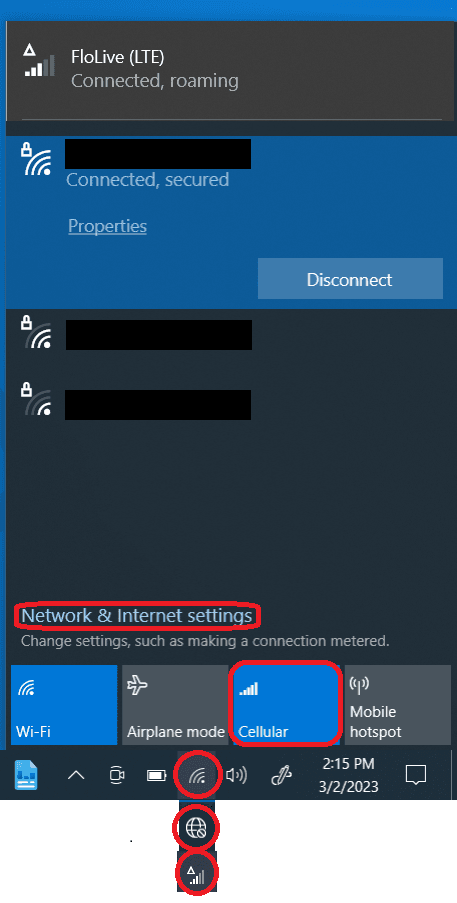
Click on "Network and Internet" settings in that same area.
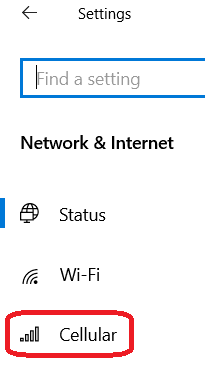
In the Network and Internet settings dialog choose Cellular on the left side.
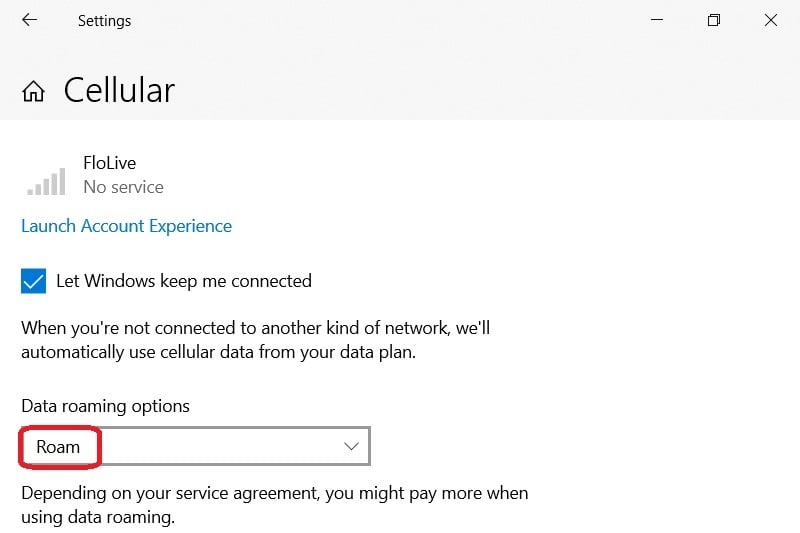
In the Cellular dialog, make sure that Roam is marked.
Note: Ignore RT5 Control Center
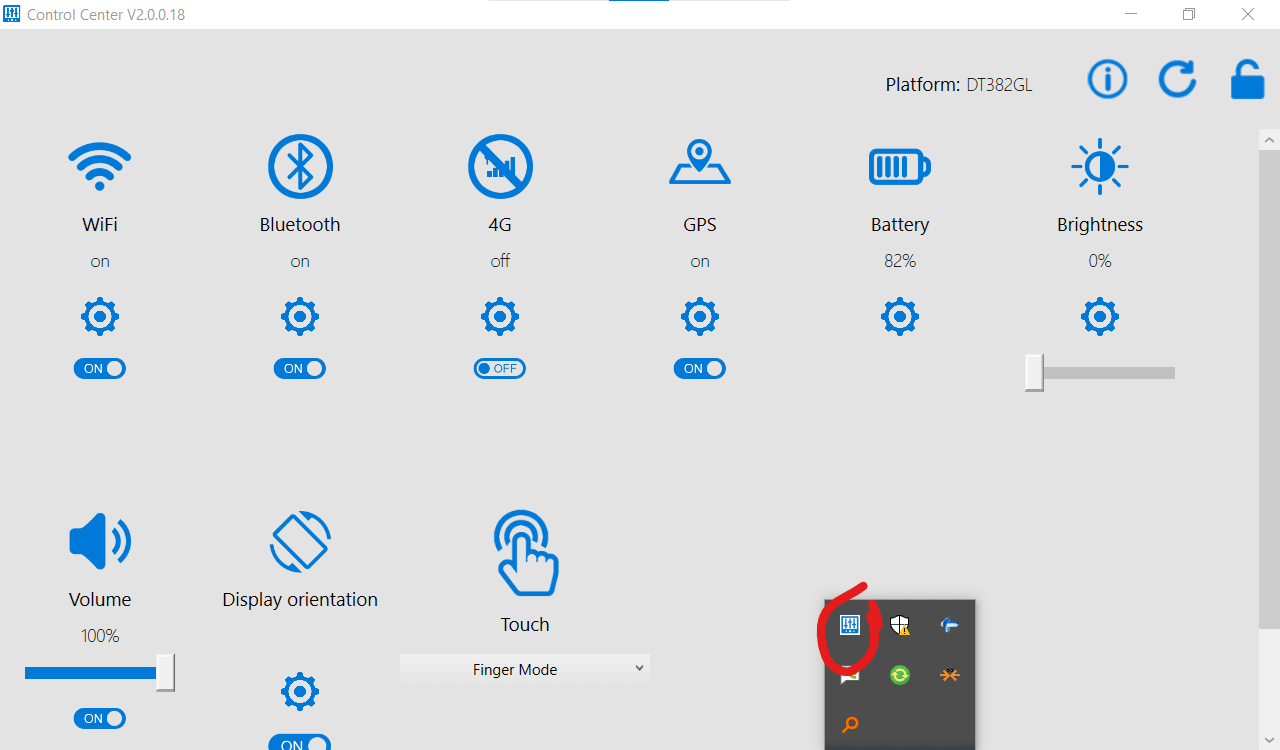
Do not be concerned if the 4G control is shown as off. It does not affect the Cellular modem.