Juniper CT8 Tablet SIM setup
Install SIM Card
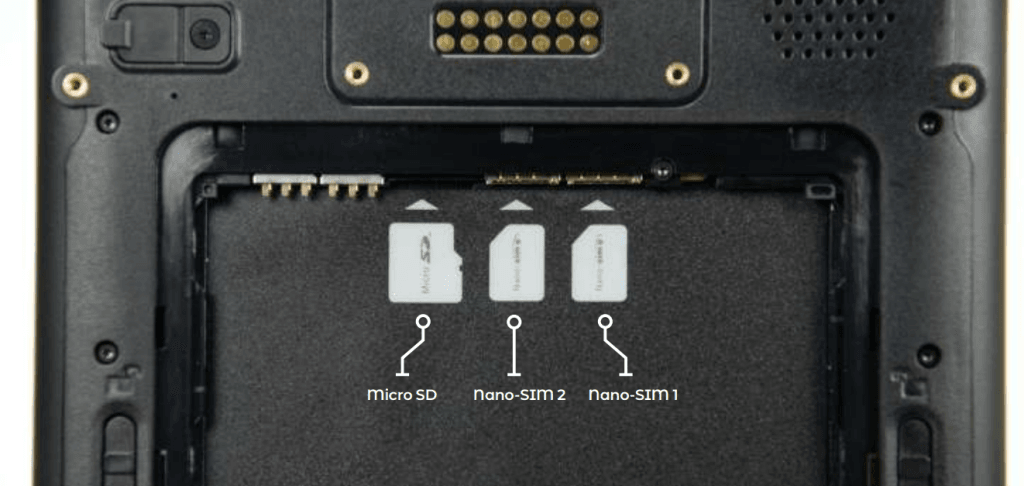
- With the unit powered on, press and hold the power button until the Power Off option appears on the screen.
- Tap Power Off. Allow the device to power off.
- Unlock and remove the battery door to access the SIM by sliding the 4 locking spots to the symbol unlock slots.
- Remove battery by sliding the battery lock to the left.
- Orient the SIM card so the contacts are facing away from you.
- Gently push the SIM card into the slot. The right SIM slot is the primary SIM.
- To remove the SIM card, gently press in the card and release. It is spring loaded. CAUTION: Do not force the card into the slot as it may damage the device. If the card does not install properly, check the orientation and try again.
- Carefully replace the battery and slide the lock to the right to secure the battery.
- Carefully replace the battery door and lock the battery door latches. WARNING: The battery door must be properly seated and secured before exposing the unit to water. Failure to perform this step could lead to water damage of the unit.
Configure Mobile Network
Swipe up from the bottom of the screen and then click on the settings button.
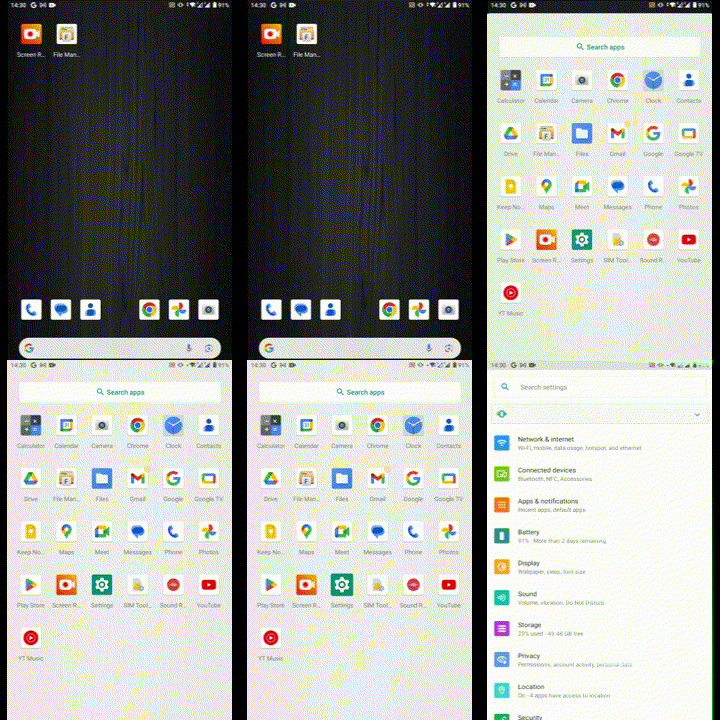
Select Network & Internet then click on Mobile network. Make sure roaming is turned on.
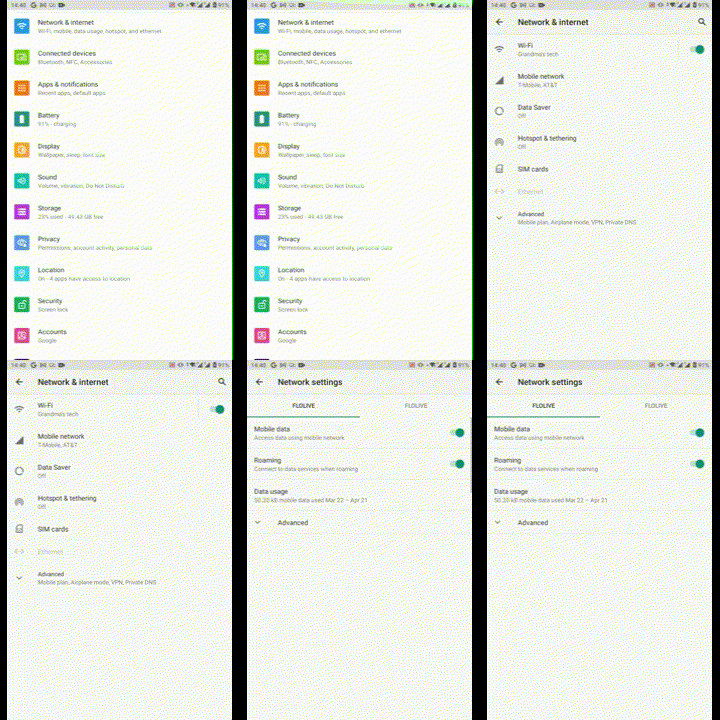
Press Advanced, scroll down the screen and select Access Point Names
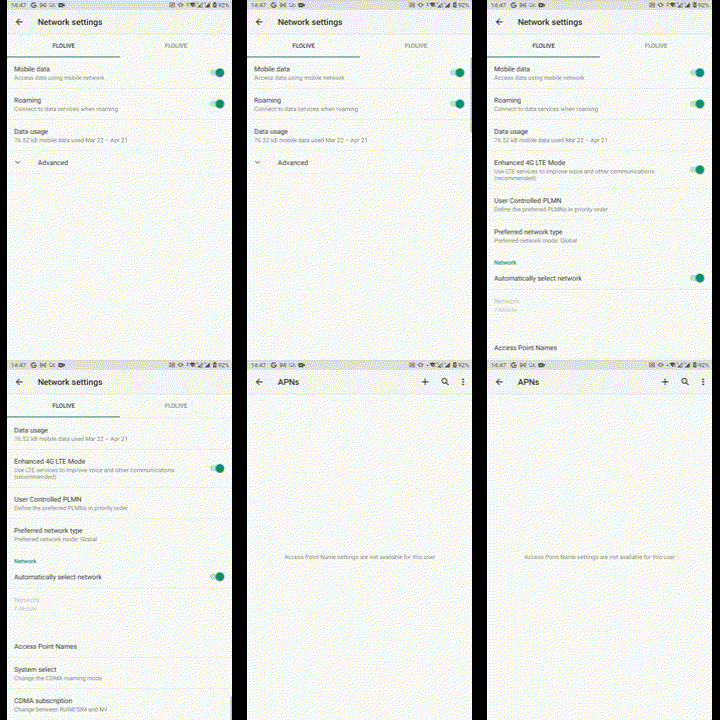
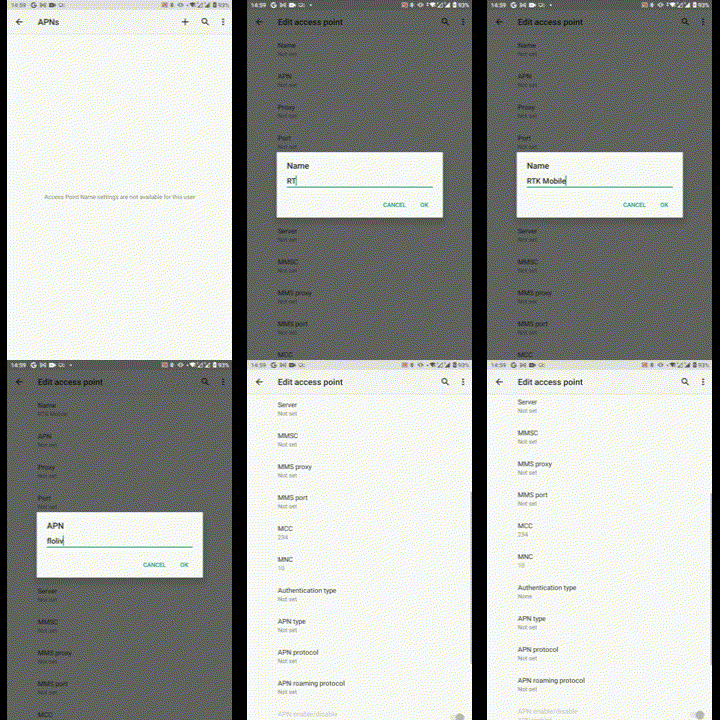
Press + to add an APN. Set Name to RTK mobile, type flolive.net for the APN, and set the Authentication type to: None. All other settings are left at their default.
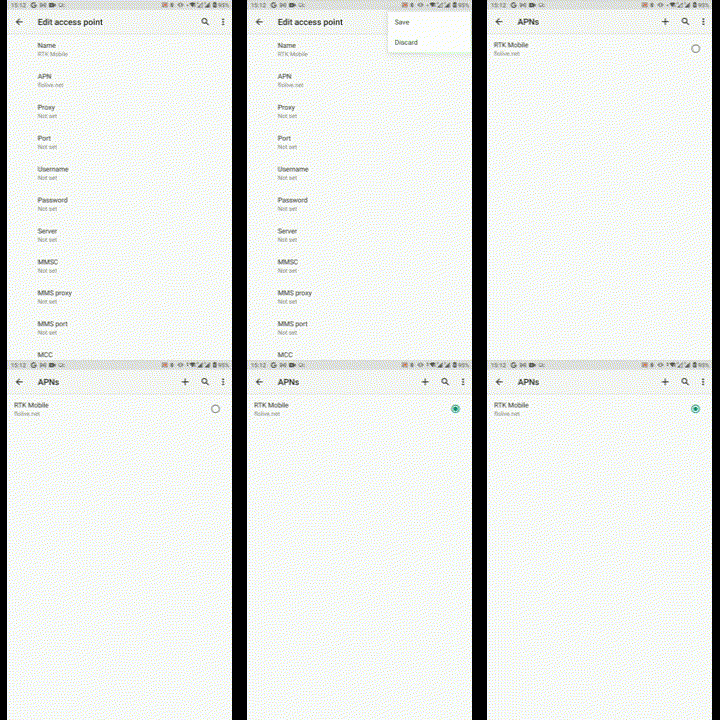
Click on the three dots in the upper right and Save - if you don't do this you will have to start all over. Then select the APN with the radio button.
Now you can turn off WiFi (if you are connected) and go to a browser to make sure you have internet.