Carlson Washington DC eSIM setup
APN setup
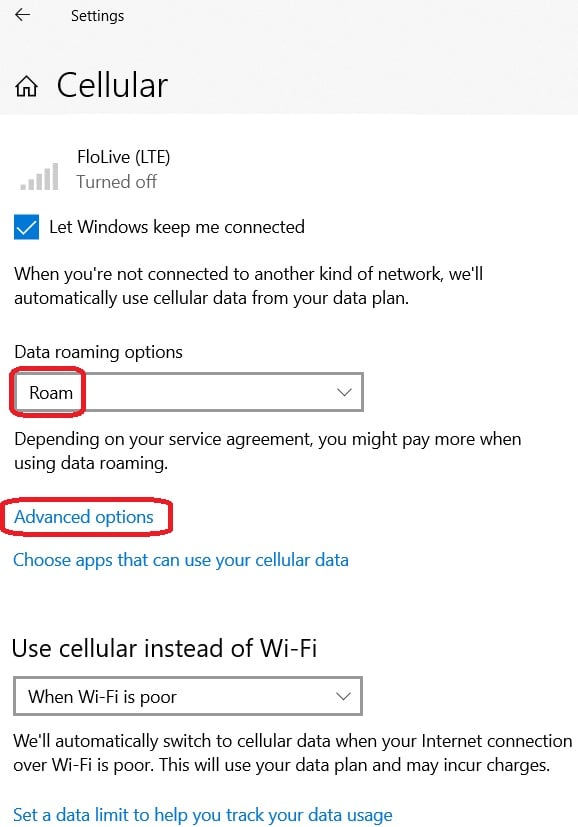
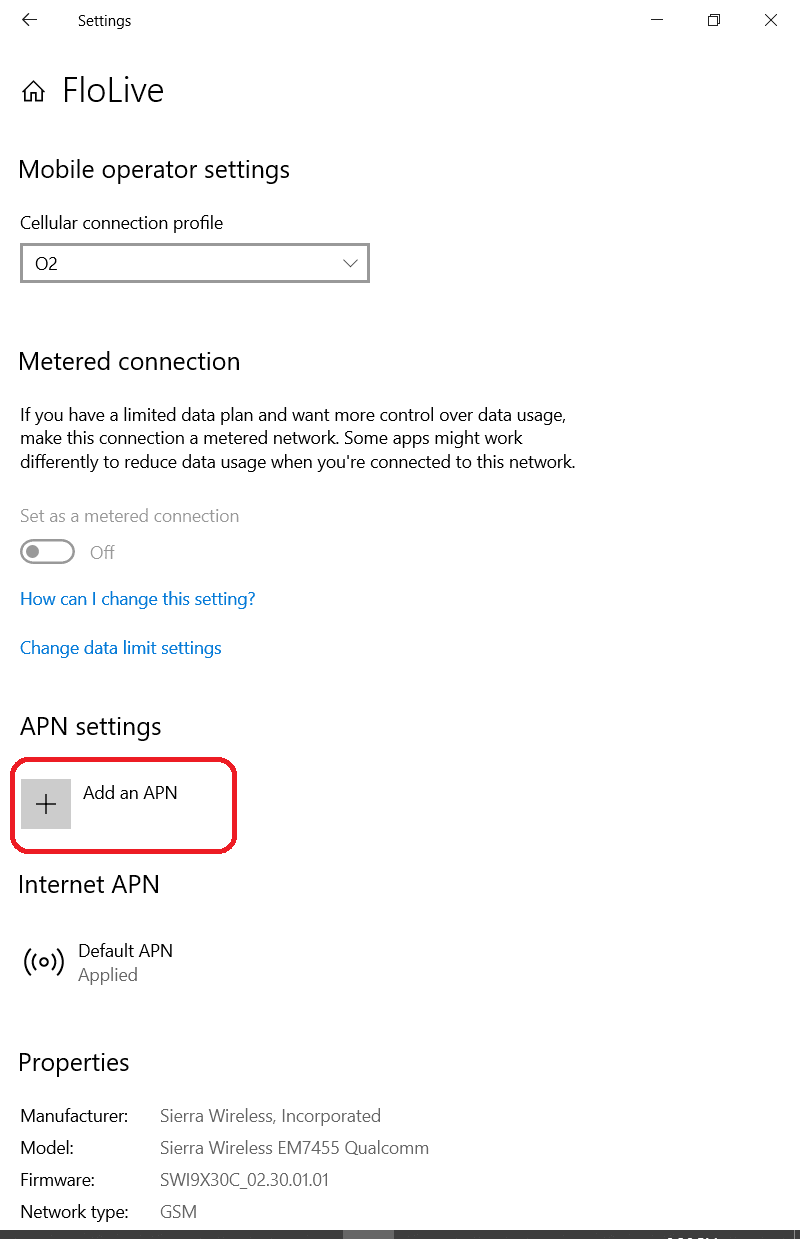
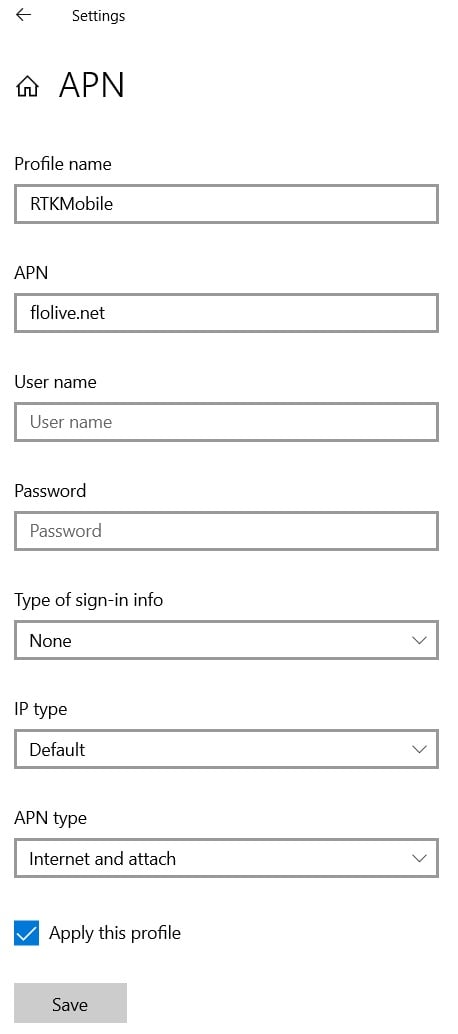
Run RTK-Mobile-Setup.exe to configure the connection, or set the APN to
flolive.netmanually. Your eSIM is preinstalled.Activate eSIM
If the program says the eSIM is not activated, scan the QR code on the back of your device or enter the ICCID on the activation page.
APN Setup
Choose how you want to set up the APN below. Both work; you only need to complete one.
Activate eSIM
RTK Mobile Setup checks whether your eSIM is activated and sends you to the activation page if it is not. You can also check yourself by finding your ICCID and entering it on the activation page.
Find your ICCID
Your ICCID is printed on the label on the back of your device, just below the serial number. It is a 19-digit number that starts with 89.
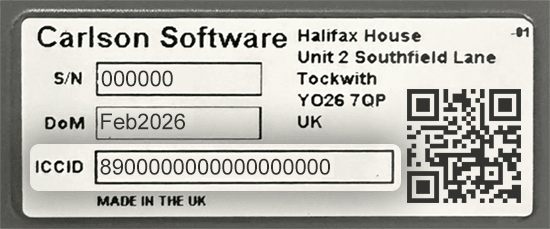
The QR code on this label contains your ICCID. Open our activation page and tap Or scan QR code to check your activation status or start a new plan without typing the number.
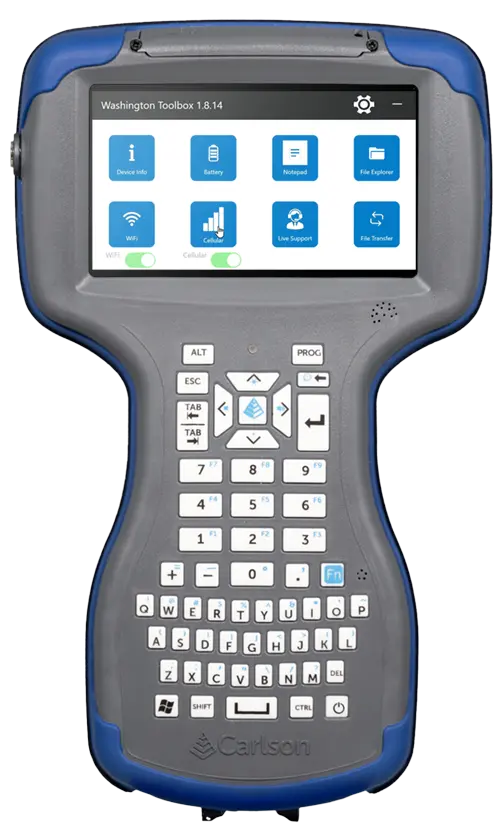
You can also look up your ICCID in the Washington Toolbox on the device itself.
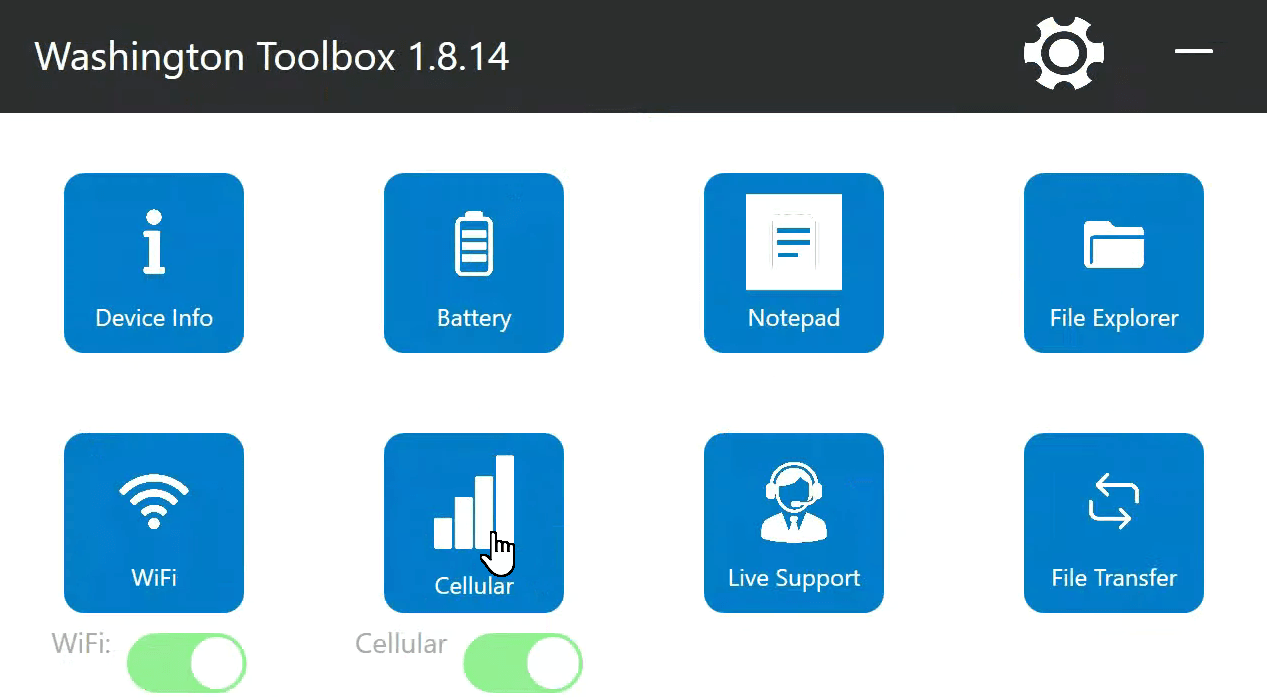
Open the Washington Toolbox and tap Cellular.
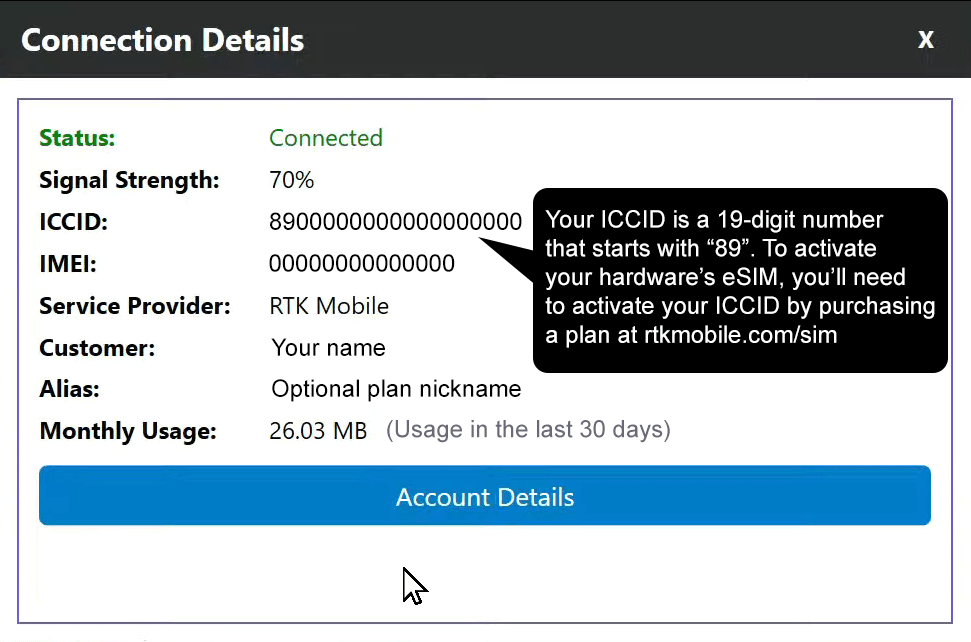
Your ICCID is listed in the Connection Details dialog.
Go to the activation page and scan the QR code or enter your ICCID to confirm that your eSIM is activated. If it is not, buy a data plan to activate it.
Additional Tips
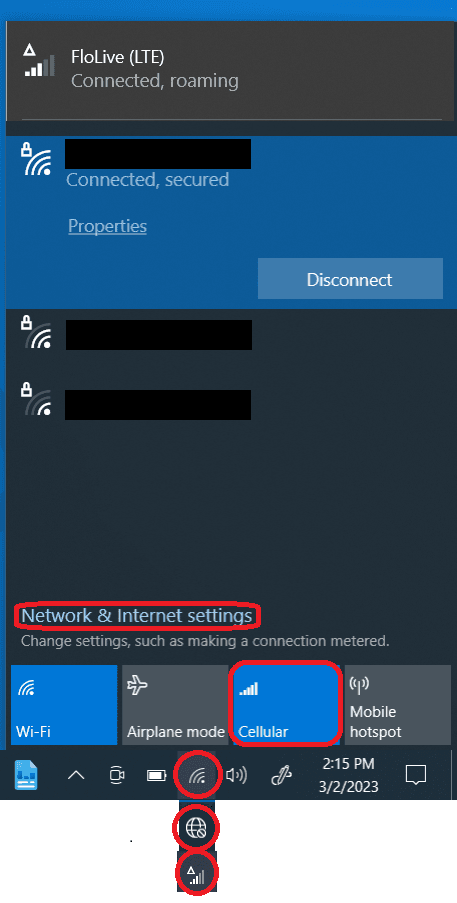
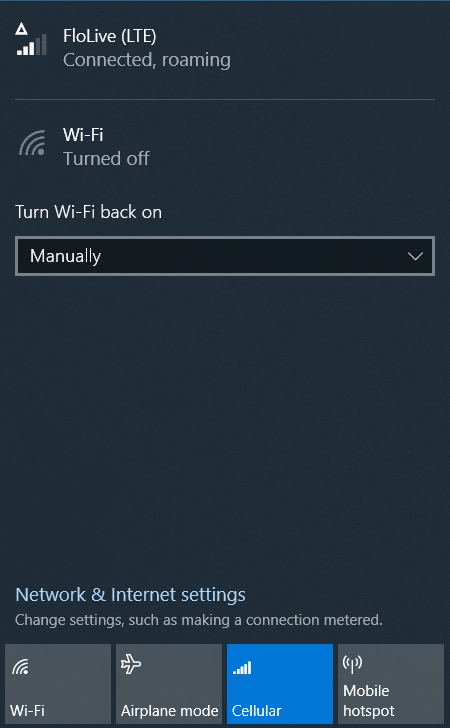
Make sure the Cellular button is on as shown above and wait two minutes to allow time for the first connection until you see "Connected, roaming". Roaming is normal and our SIM card will only work if roaming is on. If Cellular status is still "No Service" tap the Cellular button to turn it off and again to turn it back on. You may need to restart the Washington DC.
Next Steps
Now you can configure Carlson SurvPC or Carlson Layout to send RTK corrections to your GNSS receiver: